The Premier Event in Classical and Malignant Hematology
The 2025 ASH Annual Meeting has concluded. Please see the links below to purchase webcast content from the meeting and claim CME and MOC.
Save the date for the 68th ASH Annual Meeting and Exposition, taking place December 12–15, 2026, in New Orleans, Louisiana, and online!

Let's Run the Numbers
See why the ASH Annual Meeting and Exposition is the premier event in classical and malignant hematology.
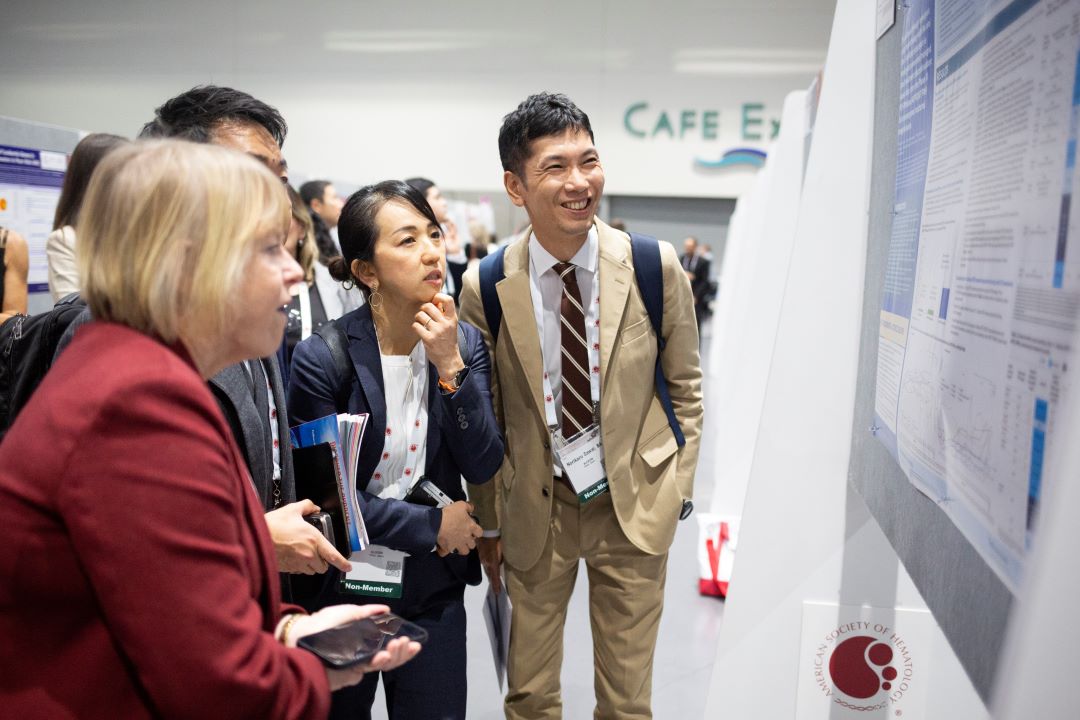
2026 Annual Meeting Abstracts Submissions
The Abstract submission site for the 2026 ASH Annual Meeting and Exposition is now open until August 4, 2026, at 11:59 p.m. Pacific time.

Poster Walks Guidelines and Application
Poster Walks highlight cutting-edge emerging hematology science presented during the meeting’s poster sessions. A total of seven Poster Walks will be featured. Learn more and apply by August 6, 2026, at 11:59 p.m. Pacific time.

Become an Exhibitor at the 2026 ASH Annual Meeting
Join over 275 pharmaceutical companies, medical suppliers, clinical diagnostic and research-based companies, publishers, and non-profit organizations by exhibiting at the 68th ASH Annual Meeting and Exposition on December 12-15, 2026, in New Orleans, Louisiana.
Key Dates for the 68th ASH Annual Meeting and Exposition
|
June 2, 2026 |
|
|
July 22, 2026, at 11:00 a.m. Eastern time |
Registration and Housing Opens for ASH Members |
|
August 4, 2026, at 11:59 p.m. Pacific time |
Abstract Submission Deadline |
|
August 12, 2026, at 11:00 a.m. Eastern time |
Registration and Housing Opens for Non-Members, Exhibitors, Groups, and Media |
|
November 4, 2026, at 9:00 a.m. Eastern time |
Abstracts Available Online |
|
December 9, 2026, at 9:00 a.m. Eastern time |
Virtual Platform Available for All Attendees |
|
December 12-15, 2026 |
68th ASH Annual Meeting and Exposition |
Officers
Belinda Avalos, MD
President
Robert Negrin, MD
President-Elect
Cynthia E. Dunbar, MD
Vice President
Jennifer R. Brown, MD, PhD
Secretary
Joseph R. Mikhael, MD, MEd
Treasurer
Councillors
Chancellor E. Donald, MD
Christopher R. Flowers, MD, MSc
H. Leighton Grimes, PhD
Jennifer Holter-Chakrabarty, MD
Mary M. Horowitz, MD
Charlotte Marie Niemeyer, MD
Sarah H. O’Brien, MD, MSc
Wendy Stock, MD
2025 Annual Meeting Accredited Education Committee
Esther Obeng, MD, PhD
2025 Scientific Program Co-Chair
Betty Pace, MD
2025 Scientific Program Co-Chair
Payal Desai, MD
2025 Education Program Co-Chair
Rayne Rouce, MD
2025 Education Program Co-Chair
Maureen Okam Achebe, MD
Bhavana Bhatnagar, DO
Ami Bhatt, MD, PhD
Hetty Carraway, MD, MBA
Thomas Coates, MD
Anna Dąbrowska-Iwanicka, MD
Courtney DiNardo, MD, MSCE
Saar Gill, MD, PhD
Torsten Haferlach, MD, PhD
Michael Jaglal, MD
Judith Kleinerman, MD
Mary Ann Knovich, MD
Alice Ma, MD
Deepa Manwani, MD
Marshall Mazepa, MD
Lori, Muffly, MD, MS
Rachel Rau, MD
Vijay Sankaran, MD, PhD
Tulika Seth, MD
Jay Spiegel, MD
Sumithira Vasu, MD, MBBS
Rahma Warsame, MD
Robert Zeiser, MD
2025 Program Committee
Belinda Avalos, MD
Catherine Bollard, MD, MBChB
Jennifer R. Brown, MD, PhD
Hetty Carraway, MD, MBA
Jorge Cortes, MD
Adam Cuker, MD, MS
Amy DeZern, MD, MHS
Chancellor E. Donald, MD
Cynthia E. Dunbar, MD
Willem Fibbe, MD, PhD
Christopher R. Flowers, MD, MSc
Patrick Gallagher, MD
Aaron Gerds, MD, MS
H. Leighton Grimes, PhD
Phoebe Joy Ho, MBBS, DPhil
Jennifer Holter-Chakrabarty, MD
Mary M. Horowitz, MD
Judith Kleinerman, MD
Jonathan Licht, MD
Keith McCrae, MD
Joseph Mikhael, MD, MEd
Robert Negrin, MD
Charlotte Marie Niemeyer, MD, MA
Sarah H. O'Brien, MD, MSc
Betty S. Pace, MD
Mary-Elizabeth M. Percival, MD
Andrew Roberts, MBBS, PhD
Jamile M. Shammo, MD
Surbhi Sidana, MD
Wendy Stock, MD
Allison Walker, MD, MPH, MBA
Andrew S. Weyrich, PhD
Alisa Wolberg, PhD
Past Annual Meetings

67th ASH Annual Meeting and Exposition
December 6-9, 2025
Orlando, FL